Getting Started
Installation
First, please install Python version 3.7 or later. We recommend 3.8.
Next, please install DataJoint via one of the following:
Pre-Requisites
- Ensure you have conda installed.
To add the conda-forge channel:
conda config --add channels conda-forge
To install:
conda install -c conda-forge datajoint
Pre-Requisites
To install:
pip install datajoint
Pre-Requisites
To install:
pip install datajoint
Connection
Note
Although you may connect to any MySQL server of your choice, the DataJoint company
offers an online tutorial environment. Simply sign up for a free
DataJoint account.
You will be granted privileges to create schemas
that are prefixed as {user}_.
Before using datajoint, set the following environment variables like so:
1 2 3 | |
To set connection settings within Python, perform:
1 2 3 4 5 | |
These configuration settings can be saved either locally or system-wide using one of the following commands:
dj.config.save_local()
dj.config.save_global()
Before using datajoint, create a file named dj_local_conf.json in the current
directory like so:
1 2 3 4 5 | |
These settings will be loaded whenever a Python instance is launched from this
directory. To configure settings globally, save a similar file as
.datajoint_config.json in your home directory. A local config, if present, will
take precedent over global settings.
Data Pipeline Definition
Let's definite a simple data pipeline.
1 2 3 4 5 6 7 8 9 10 11 12 13 14 15 16 17 18 19 20 21 22 23 24 25 26 27 28 | |
-
This statement creates the database schema
{username}_shapeson the server. -
The
@schemadecorator for DataJoint classes creates the table on the server. -
The table is defined by the the
definitionproperty.
It is a common practice to have a separate Python module for each schema. Therefore,
each such module has only one dj.Schema object defined and is usually named
schema.
The dj.Schema constructor can take a number of optional parameters
after the schema name.
context- Dictionary for looking up foreign key references. Defaults toNoneto use local context.connection- Specifies the DataJoint connection object. Defaults todj.conn().create_schema- WhenFalse, the schema object will not create a schema on the database and will raise an error if one does not already exist. Defaults toTrue.create_tables- WhenFalse, the schema object will not create tables on the database and will raise errors when accessing missing tables. Defaults toTrue.
The @schema decorator uses the class name and the data tier to check whether an
appropriate table exists on the database. If a table does not already exist, the
decorator creates one on the database using the definition property. The decorator
attaches the information about the table to the class, and then returns the class.
Diagram
Display
The diagram displays the relationship of the data model in the data pipeline.
This can be done for an entire schema:
dj.Diagram(schema)
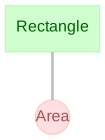
Or for individual or sets of tables:
dj.Diagram(schema.Rectangle)
dj.Diagram(schema.Rectangle) + dj.Diagram(schema.Area)
What if I don't see the diagram?
Some Python interfaces may require additional draw method.
dj.Diagram(schema).draw()
Calling the .draw() method is not necessary when working in a Jupyter notebook by
entering dj.Diagram(schema) in a notebook cell. The Diagram will automatically
render in the notebook by calling its _repr_html_ method. A Diagram displayed
without .draw() will be rendered as an SVG, and hovering the mouse over a table
will reveal a compact version of the output of the .describe() method.
Customize
Adding or substracting a number to a diagram object adds nodes downstream or upstream, respectively, in the pipeline.
(dj.Diagram(schema.Rectangle)+1).draw() # (1)
- Plot all the tables directly downstream from
schema.Rectangle
(dj.Diagram('my_schema')-1+1).draw() # (1)
- Plot all tables directly downstream of those directly upstream of this schema.
Save
The diagram can be saved as either png or svg.
dj.Diagram(schema).save(filename='my-diagram', format='png')
Add data
Let's add data for a rectangle:
Rectangle.insert1(dict(shape_id=1, shape_height=2, shape_width=4))
Run computation
Let's start the computations on our entity: Area.
Area.populate(display_progress=True)
Query
Let's inspect the results.
Area & "shape_area >= 8"
| shaped_id | shape_area |
|---|---|
| 1 | 8.0 |